Bring your photos together. Keep the decisions yours.
Organize copies scattered media into dated folders. Deduplicate helps you choose which extras to remove. Import from Apple Photos, keep up with new arrivals, and preview every run before approving it.
Screens show a staged demo library with full access. Select a screenshot to view it larger.
Organize
From loose files to a library you can navigate
Setup, Run, Health, and History help you plan the transfer, check the result, and keep a record.
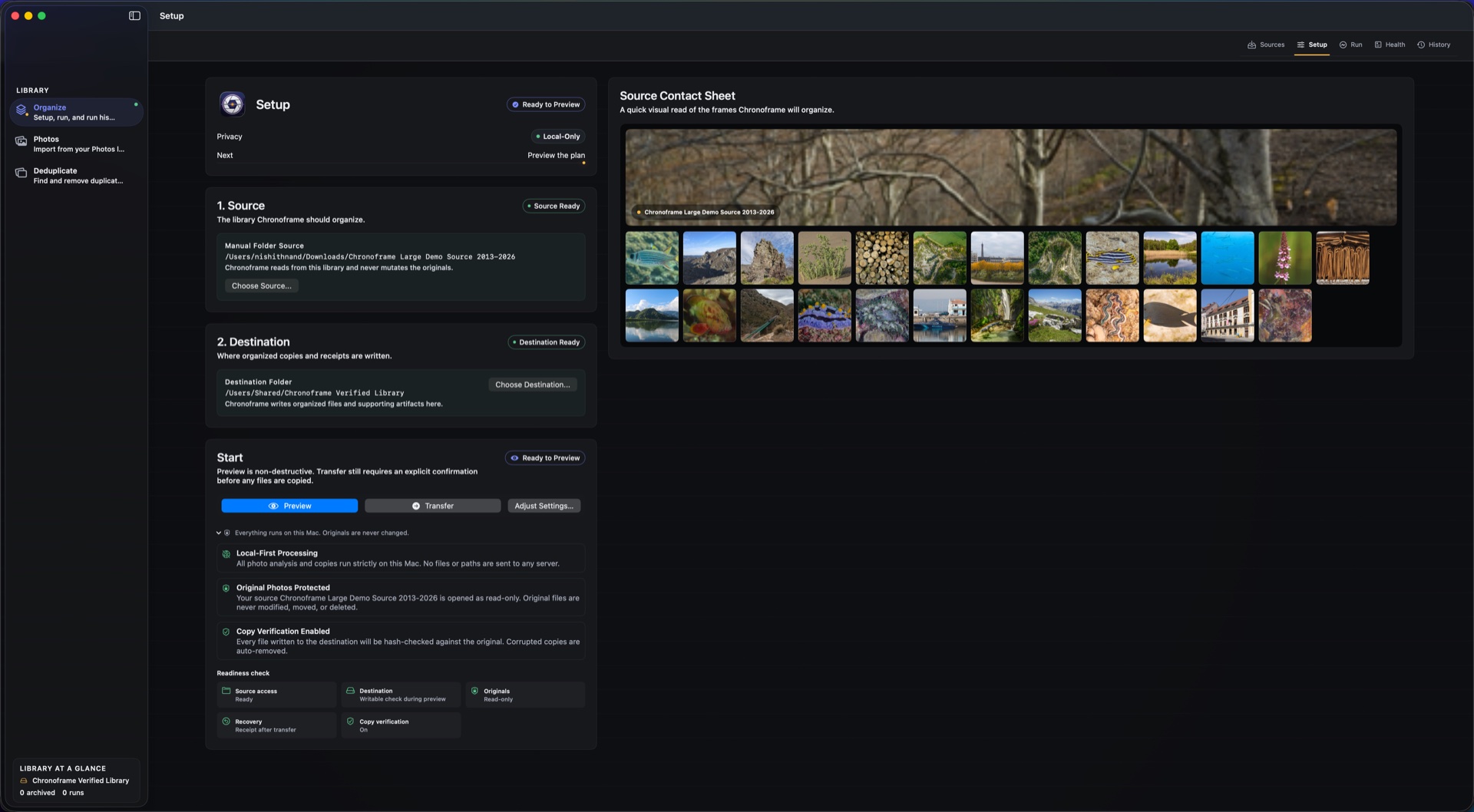
SetupChoose a source and a destination.
Step 1 · Setup
Point Chronoframe at the mess
Pick the folder to organize and a separate destination for the clean copies. Chronoframe reads the source and never mutates it. A contact sheet gives you a quick visual read of what's about to be organized before you commit to anything.
Default YYYY/MM/DD layout, or switch to year/month or event folders in Settings.
Source is read-only; the destination receives copies and receipts.
Prefer Apple Photos? Import selected originals into the same flow without changing your Photos library.
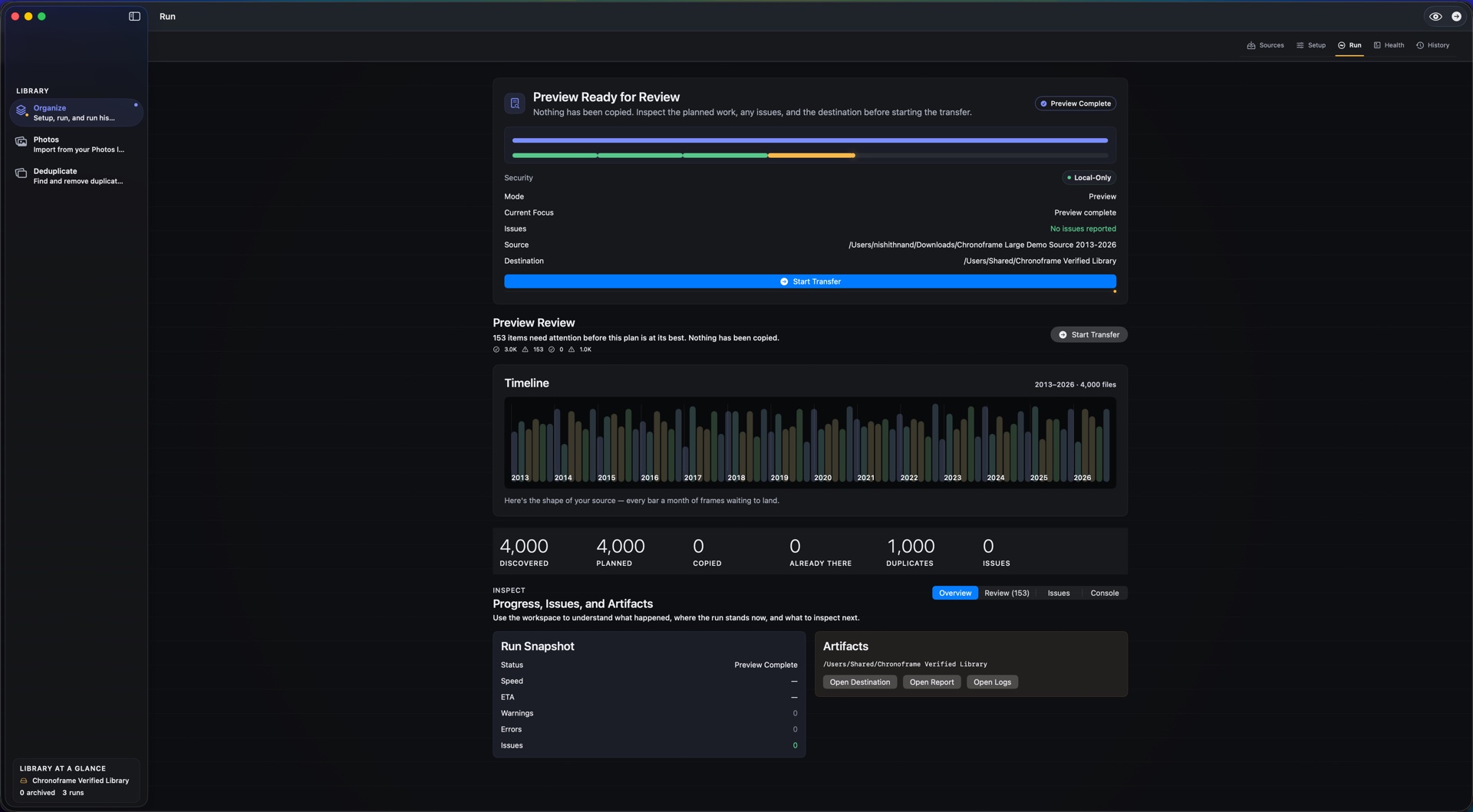
Run · PreviewSee the exact plan before anything copies.
Step 2 · Run
Preview, then transfer
Preview Plan scans the source, resolves each date, and builds the transfer — without copying a thing. A timeline shows the shape of your library month by month, alongside counts for what's ready, already there, duplicated, or in need of attention. Correct or skip anything in Review, then start the transfer when the plan looks right.
Dates resolve from EXIF, then filename, then file dates — and always defer to any date you set.
Review uncertain dates before transferring; files without a resolved date can go into an Unknown_Date folder.
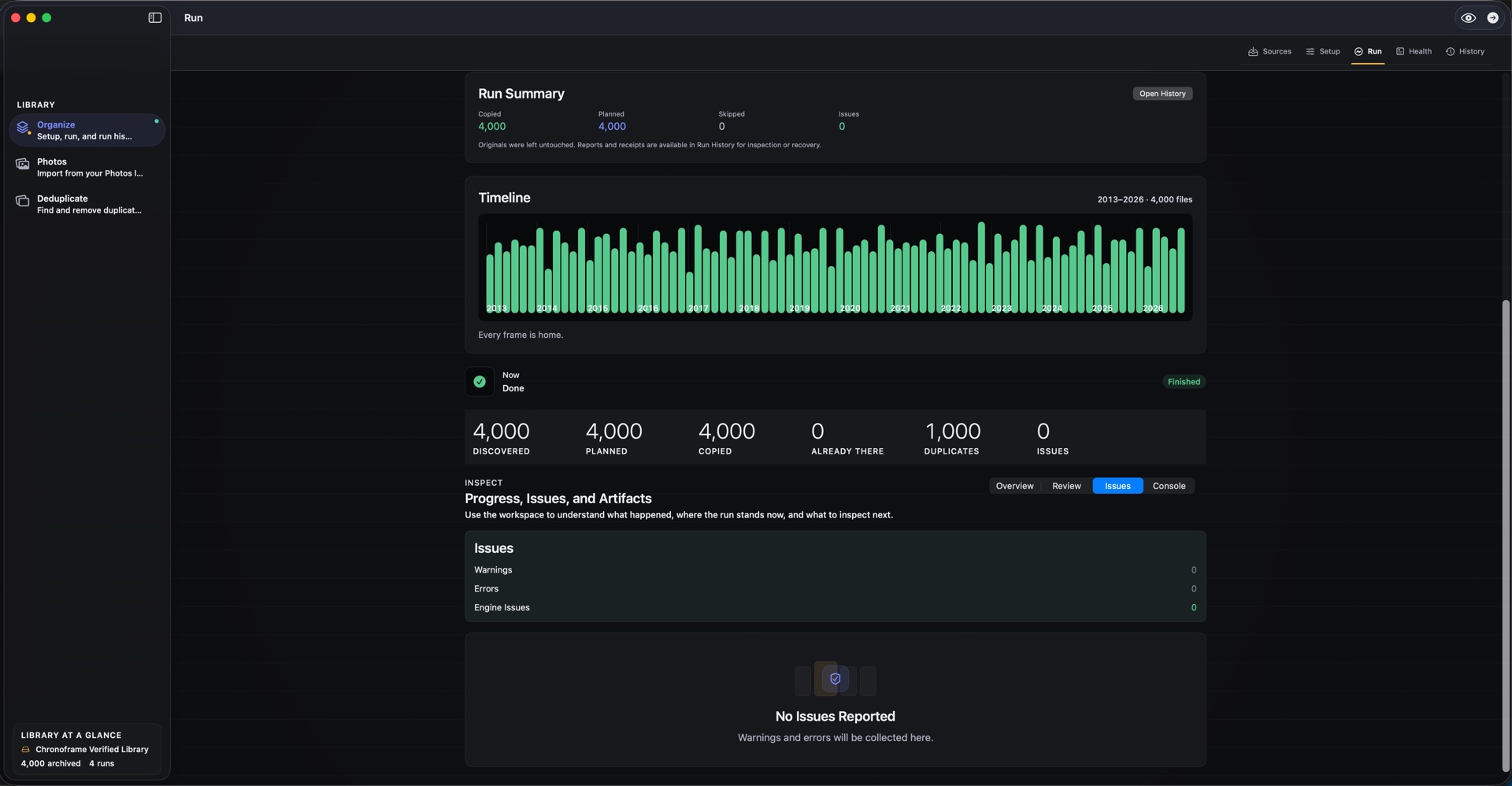
Run · CompleteA verified copy, originals untouched.
Step 2 · Run
Every frame lands, verified
With verification enabled (the default), each copy is re-hashed against the original. Files are written to a temporary location before being put into place. When the run finishes you get a summary of what was copied, skipped, and flagged — and a reminder that your originals were never touched. Reports and receipts are written to the destination for inspection or recovery.
Step 3 · Health
See what needs attention
The Health check scans for unknown dates, exact-duplicate hints, interrupted work, folder-structure drift, and anything that could make an undo unsafe. A single healthy score summarizes the state, and each card links you straight to the fix.
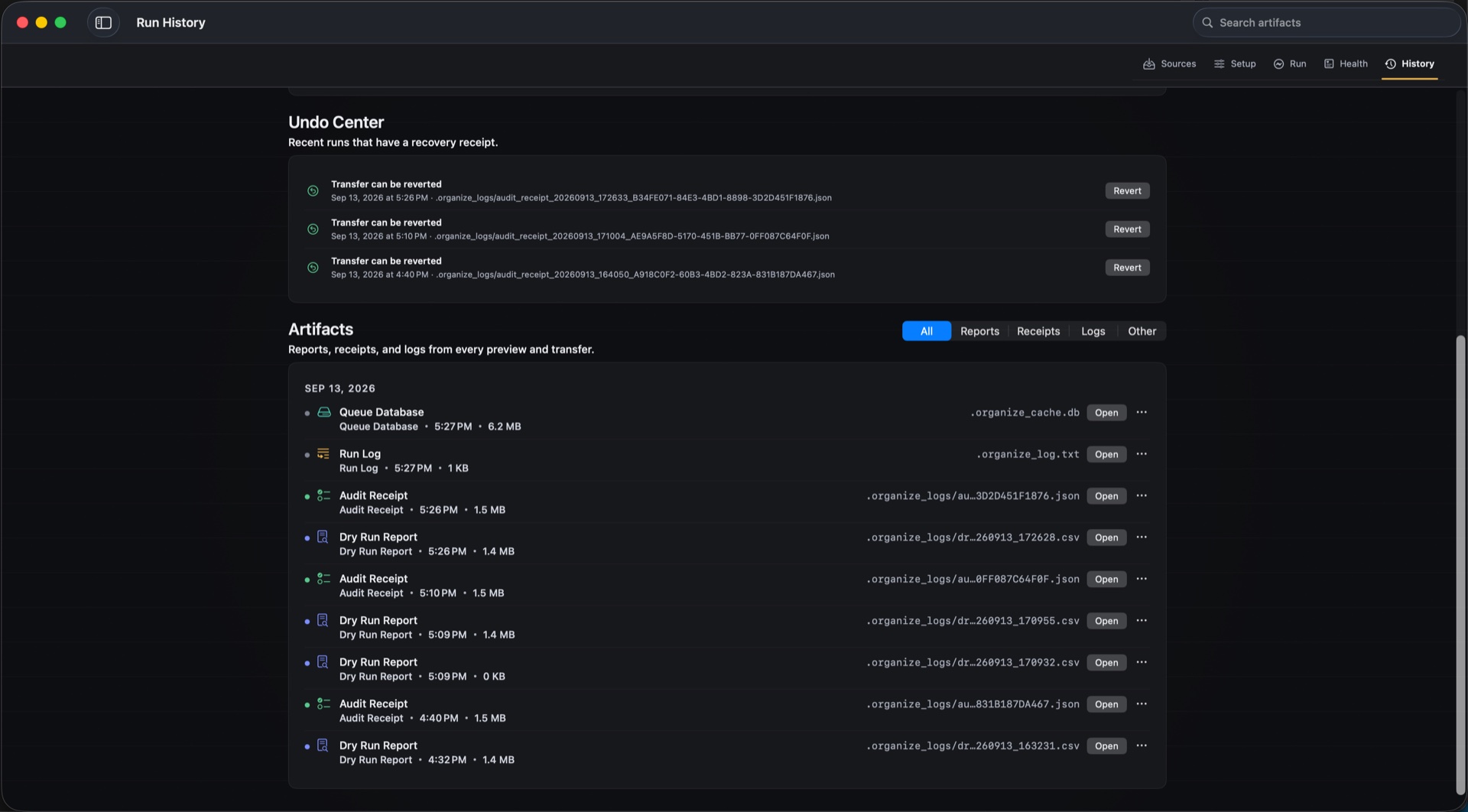
HistoryReceipts, reports, and safe undo.
Step 4 · History
Every run is on the record
History keeps receipts for transfers, dedupe commits, and reorganize runs. Reuse a source you've organized before, change the destination layout, or revert a run — but only while the files still match the receipt, so an undo preserves files you added or changed afterward. Restoring a trashed file requires it to still be in Trash with matching contents; emptied Trash cannot be restored by Chronoframe.
Deduplicate
Reclaim space, one reviewed decision at a time
Find duplicates by content, review look-alikes side by side, and send only what you approve to the Trash.
Step 1 · Scan
Choose how thorough to be
Point Deduplicate at a folder and pick a detection preset. Balanced suits most libraries; Exact copies keeps things conservative; Similar shots casts a wider net. Exact photo and video copies are matched by content, so two files pair only when their bytes are identical — not because their names happen to match.
An off-by-default setting can surface visually similar videos (transcodes and re-exports) for review.
Recent scan folders remember what they recovered, so you can re-run in a click.
Review & TrashCompare, decide, then commit.
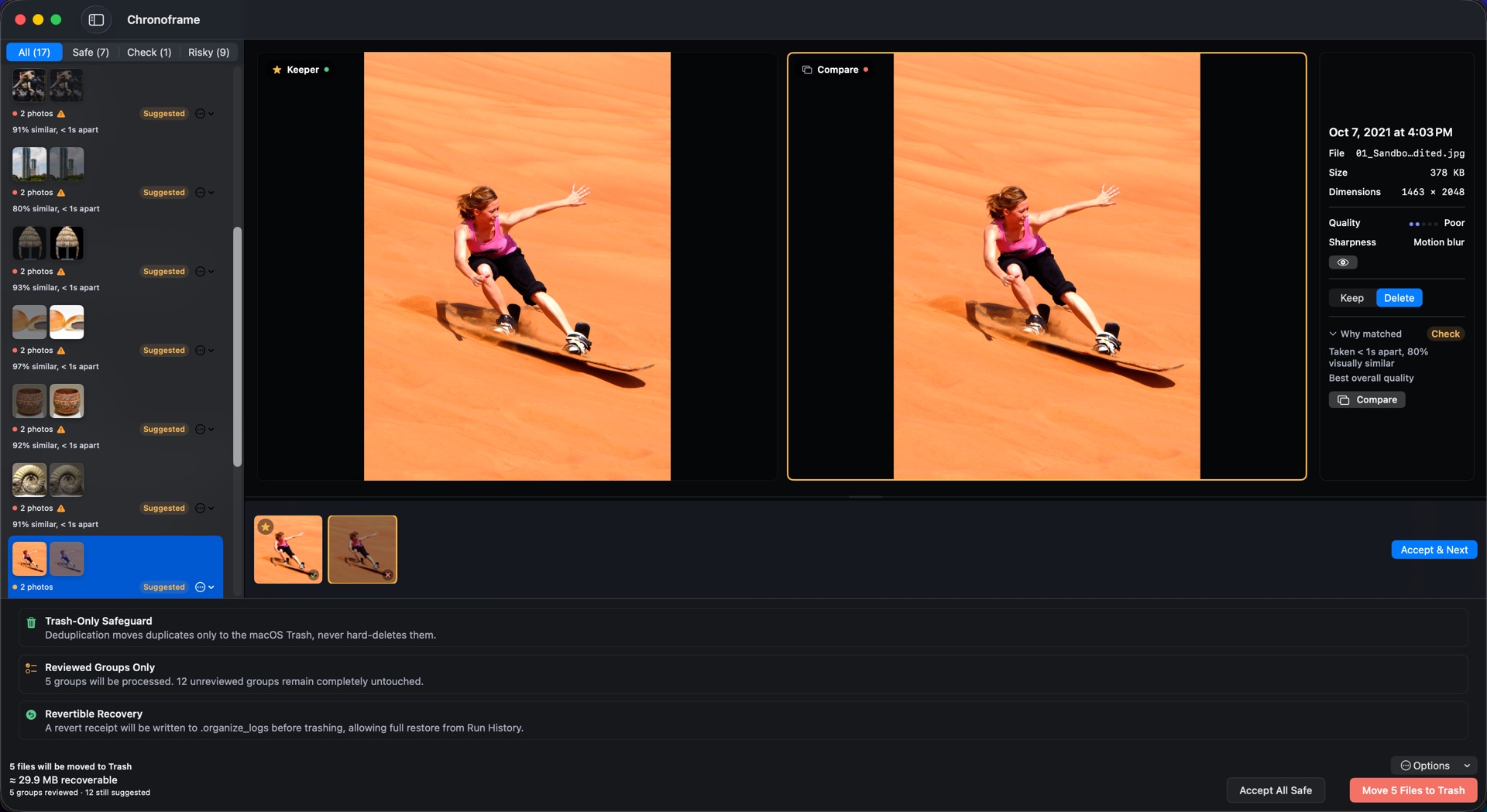
Step 2 · Review
You decide what stays
Each group is presented for a keep-or-delete decision, with the two frames side by side and details like size, dimensions, and sharpness to break ties. Automatic suggestions can help with high-confidence groups; weaker matches and visually similar videos need individual review. When the plan looks right, Move to Trash sends only your approved files to the macOS Trash — every mutation re-verified by content first, never a hard delete.
Open Photos in the sidebar, grant access, select photos or videos, and choose Review & Import. Chronoframe exports the original, unedited resources to temporary staging, then uses the same preview and verified-copy workflow.
Live Photo stills and movies travel together. iCloud-only originals download through Apple, so allow a connection and extra temporary disk space. Nothing in your Apple Photos library is changed or deleted.
Watched sources
A standing list of what’s new.
Add a recurring source under Organize → Sources. While the app is running, Chronoframe watches for arrivals and estimates how many items are new.
You choose when to review and import. Watching a folder does not automatically copy files, change the destination, or skip your approval.
Photos and video
Find copies beyond filenames.
Exact matching compares file contents for both photos and videos. For possible re-exports and resizes, enable Find visually similar videos in Settings → Deduplicate → Video.
This optional setting is off by default, takes additional analysis, and applies with the Balanced or Similar shots preset. Similar-video groups always need your review; they never receive automatic removal selections.
Free previews, scans, Health, and History stay available after your trial allowance is used. Revert is never locked behind a purchase. See trial details →
Try it on one folder.
Download free and organize up to 500 files. Preview, scan, and review without limits or a countdown. You can also move 100 approved duplicate files to Trash before choosing whether to unlock.
 Chronoframe